Pick Appscreensii if…
- You want a finished set today
- You aren't a designer, or you don't want to be one this week
- You ship in several languages
- You update screenshots every release
Figma and App Store screenshots
Figma gives you total control, and Apple even publishes Figma templates. It also leaves the sizes, translations and repeats to you. Here's how to decide, and how to use both.
Runs in your browser on a computer · No card until you export
In short
You can make App Store screenshots in Figma, with total control and your existing design system, and Apple offers Figma templates for its header and search images. You handle the sizes, the frames, the translations and every repeat yourself. A dedicated tool like Appscreensii handles those for you. You can also use both: Appscreensii exports each screen to Figma, with headlines as live text and everything else as positioned image layers.
What a dedicated tool saves
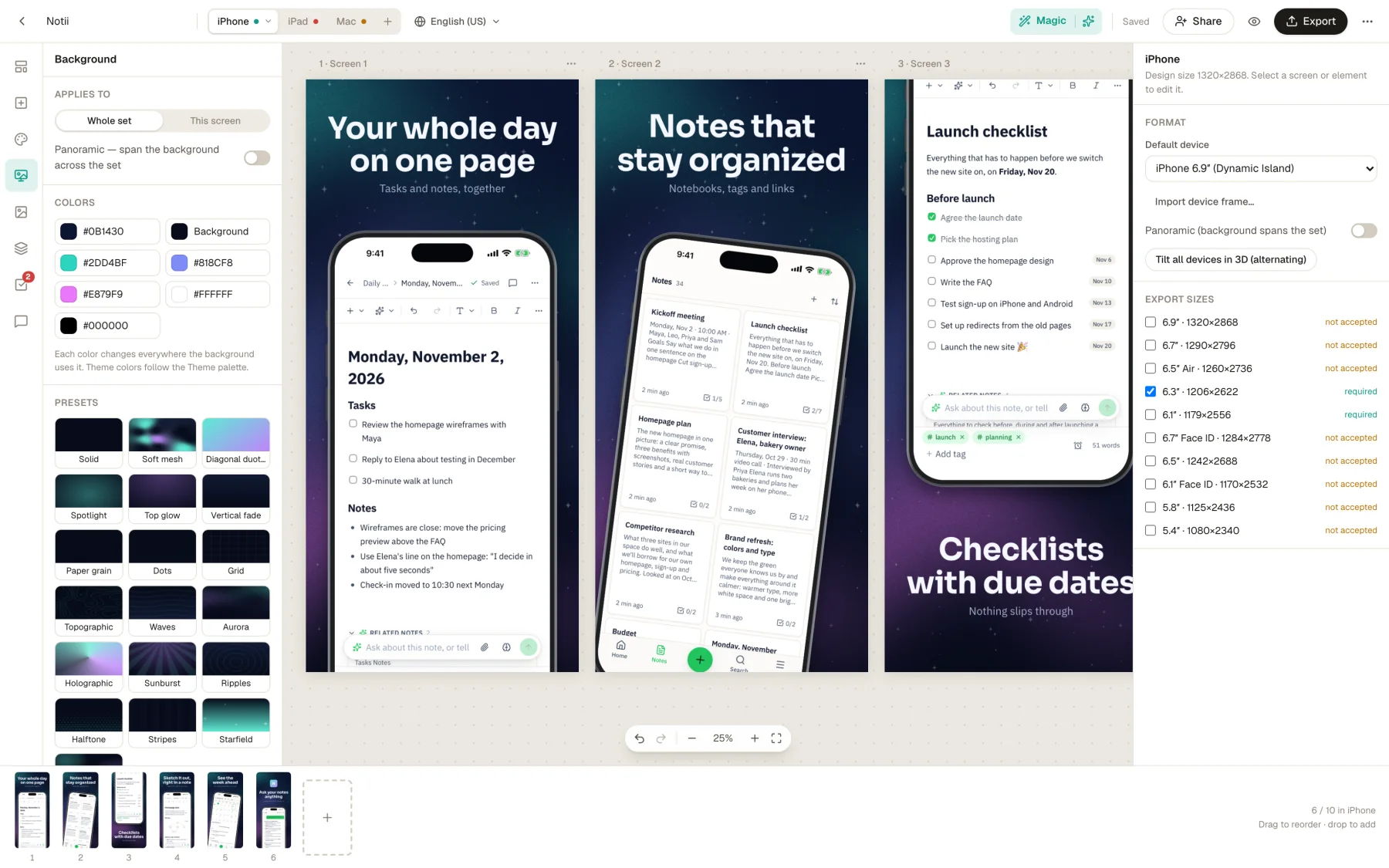
Export at every store size from one design, and be told which ones App Store Connect refuses.
84 languages, including the text inside your captures, with overrides and a grid, rather than a frame for each language.
New release? Drop on a screen to swap its capture and keep the design.
Each screen becomes an SVG that Figma turns into a frame with layers, with headlines as live text in their font.
Side by side
| Feature | Appscreensii | Figma |
|---|---|---|
| Made for | App Store and Google Play screenshots, with a team | Design in general, with screenshots as one use |
| Control | A full canvas, within the tool's features | Everything, including your components and design system |
| Starting point | 30 templates and 20 layouts, previewed with your own screens | Your own frames, the Figma Community and UI kits, and Apple's templates |
| Store sizes | Built in, with refused sizes marked | You set up each frame |
| Translation | 84, including captions and text inside screenshots | By hand, or with plugins |
| AI | Reads your screens, writes the story and captions, offers four designs | AI credits on its plans, for design in general |
| Working together | Live cursors and selections, roles, comments with @mentions | Yes, and it's excellent at this |
| Price to start | Designing costs nothing. Exporting starts a 7-day free trial, then $12 a month, or $10 a month billed annually. See pricing | A free Starter plan, and paid plans |
Compared from each product's own public pages on November 4, 2026; features and prices change, so check before you decide. "Not stated" means we didn't find it on those pages, not that the product can't do it. Product names are trademarks of their owners. Appscreensii isn't affiliated with or endorsed by them.
Which to pick
Apple's asset best practices page links Figma templates for the product page header and search results.
Questions
Yes. The Figma Community has many, and Apple links to Figma templates for its new header and search images.
Export to Figma, then drop the SVG on the canvas. It becomes a frame with layers: headlines as live text, everything else as positioned images.
Not as a design. You can export captures or images from Figma and drop them in.
Designing costs nothing. Exporting starts a 7-day free trial, with a card, then it's $12 a month, or $10 a month billed annually. Cancel before the trial ends and you pay nothing. A project owner's plan covers the people they invite. See pricing.
Keep reading
Drop in your screenshots and see them in every template, right now.
Get started