Guide · rules
Screenshot guidelines, in plain words.
What Apple and Google ask for, what to keep out, and how to fix the upload errors that stop a release. Taken from their own pages.
Runs in your browser on a computer · No card until you export
In short
Apple's guidelines ask screenshots to show your app in use and to leave out specific prices, discounts, URLs, copyright symbols, unverifiable claims, other platforms' logos and Apple's own recognitions. Assets must suit a 4+ age rating, whatever your app's rating. Upload errors usually come down to a wrong pixel size or an alpha channel. Google adds limits on calls to action, rankings, and text over 20% of the image. Read November 4, 2026.
- Show
- Your app in use, in order, with short text
- Leave out
- Prices, URLs, rankings, other platforms' logos
- Most common refusal
- Wrong pixel size, or an alpha channel
- Age rating
- Assets must suit 4+
On this page
What Apple asks for
From Apple's asset best practices. It also points to section 2.3 of the App Review Guidelines, on accurate metadata.
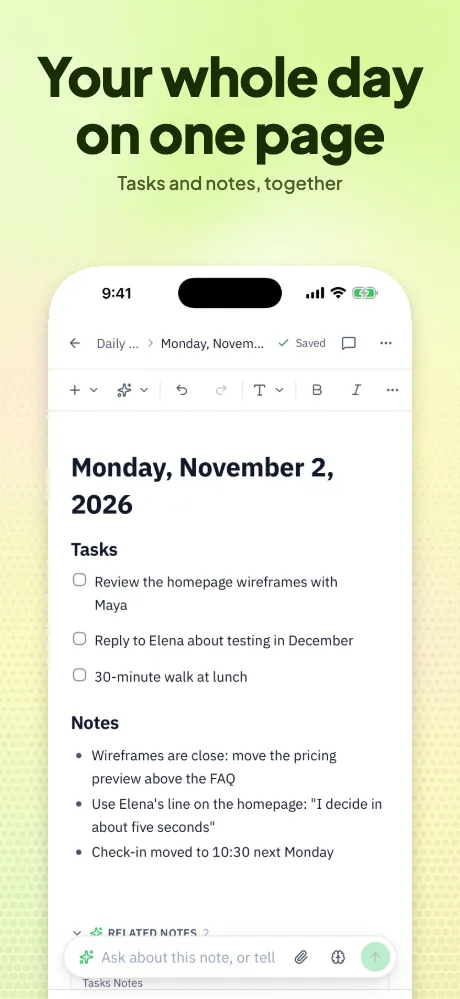
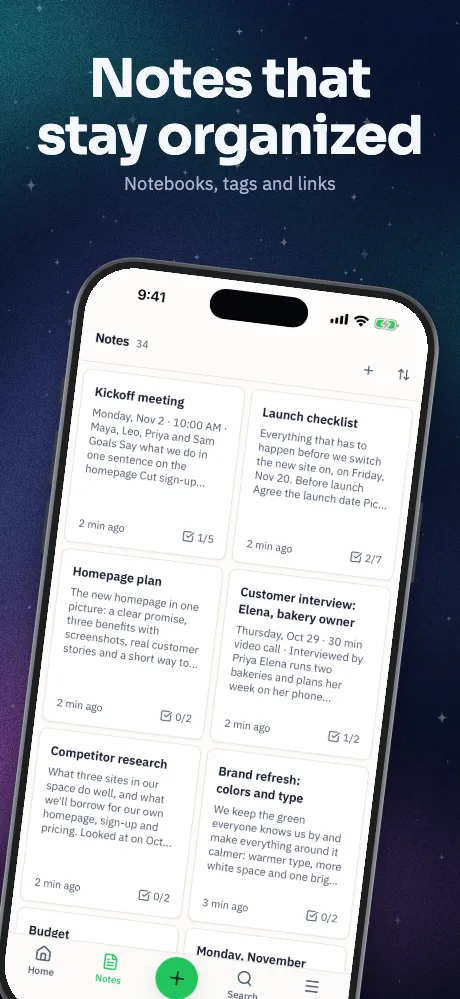
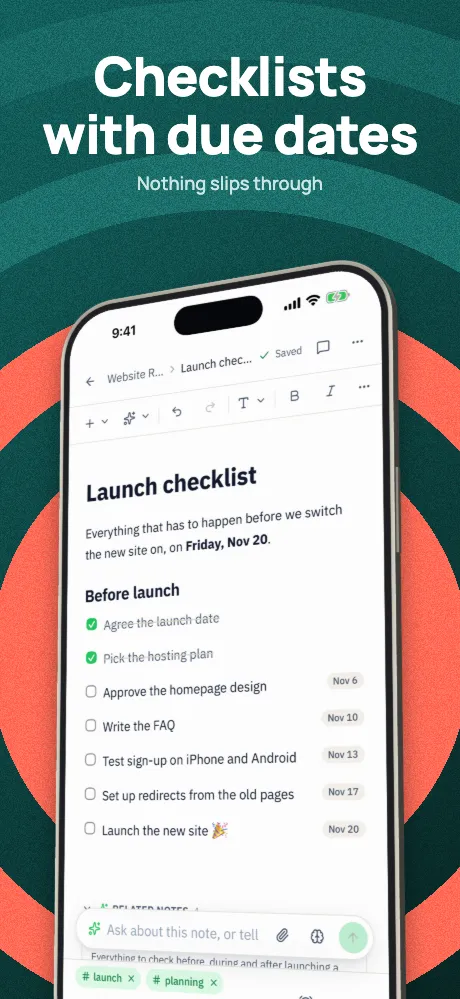
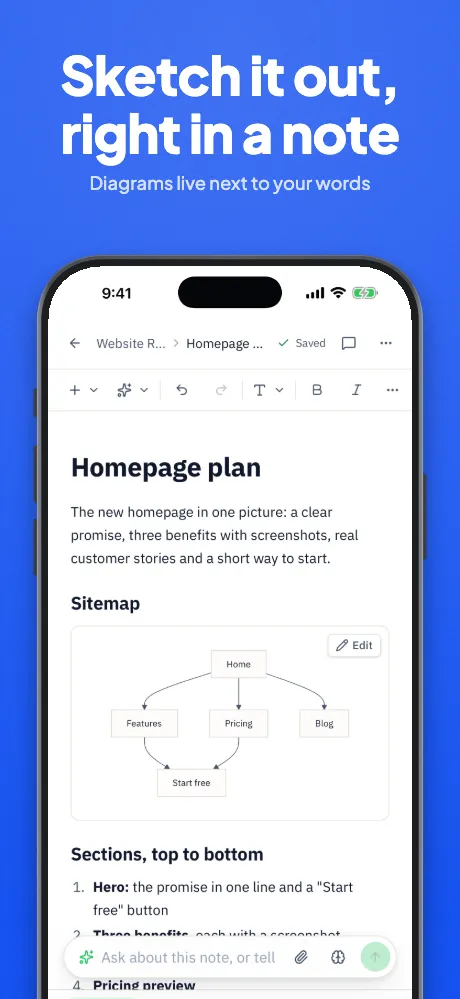
- Show the app in use. Give a clear view of the experience, and don't use a whole image for accolades or a call to action.
- Lead with your best. Put your strongest features first and sequence them to tell a story.
- Keep text short. Use a short phrase that adds to the picture rather than describes it, and localize it.
- Keep it legible. Design with a safe area, and keep key elements near the center.
- Keep it for all ages. Assets must meet a 4+ rating, even if your app's rating is higher.
Keep these out
- Specific prices, discounts, website URLs and copyright symbols.
- Claims you can't verify, such as awards you haven't received.
- Logos of, or references to, other platforms or marketplaces.
- Apple's recognitions, such as Editor's Choice or App of the Day.
What Google asks for
From Google's preview assets page and its best practices:
- No calls to action such as "Download now" or "Try now".
- No claims such as "Best", "#1", "Top", "New", "Sale" or "Million Downloads".
- No store performance, ranking or price text, such as "#1" or "10% off".
- Taglines under 20% of the image.
- Device imagery discouraged, along with people interacting with the device.
- A clean notification bar.
- Screenshots that don't misrepresent what the app does.
Why an upload gets refused
| What you see | What it usually means | The fix |
|---|---|---|
| "The dimensions of one or more screenshots are wrong" | The file isn't an exact size for that slot, often a 6.9-inch file in the medium display slot | Export at 1206 × 2622 or 1179 × 2556. Check the file |
| Alpha channel or transparency error | The PNG has an alpha channel, even if nothing in it is see-through | Re-save as a PNG without alpha, or as a JPEG |
| Refused file type | WebP, HEIC or another format | Save as .png, .jpg or .jpeg |
| Missing iPad screenshots | Your app runs on iPad, and the 13-inch set is missing | Make 2064 × 2752 or 2048 × 2732, or check your app's supported devices |
| Screenshot rejected in review | Usually content: it doesn't show the real app, or breaks a rule above | Read the note from App Review, and compare against this page |
Passing upload only means the file is the right size. App Review looks at content separately, and approving a listing is always up to the store.
A checklist before you submit
- The first three screens make sense on their own at search size.
- Each headline is a short phrase, not a sentence about the screen.
- Status bars are clean, with no debug overlays, placeholder text or real people's data.
- No visible keyboard, loading state or empty state, unless it's the point.
- No prices, URLs, rankings or "new".
- Text is translated for each language you list, and fits.
- Sizes match the slot, with no alpha.
What Appscreensii's checks catch
30 checks run as you work: 22 from rules, and 8 that use AI once Magic has read your screens. Many have a one-click fix. They're a help, not a guarantee.
| Group | Examples |
|---|---|
| Store words | Ranking or superlative words, calls to action, prices and promotions, time-sensitive words, in several languages |
| Sizes | Sizes App Store Connect won't take, upscaled screenshots, the wrong shape, a capture from another device |
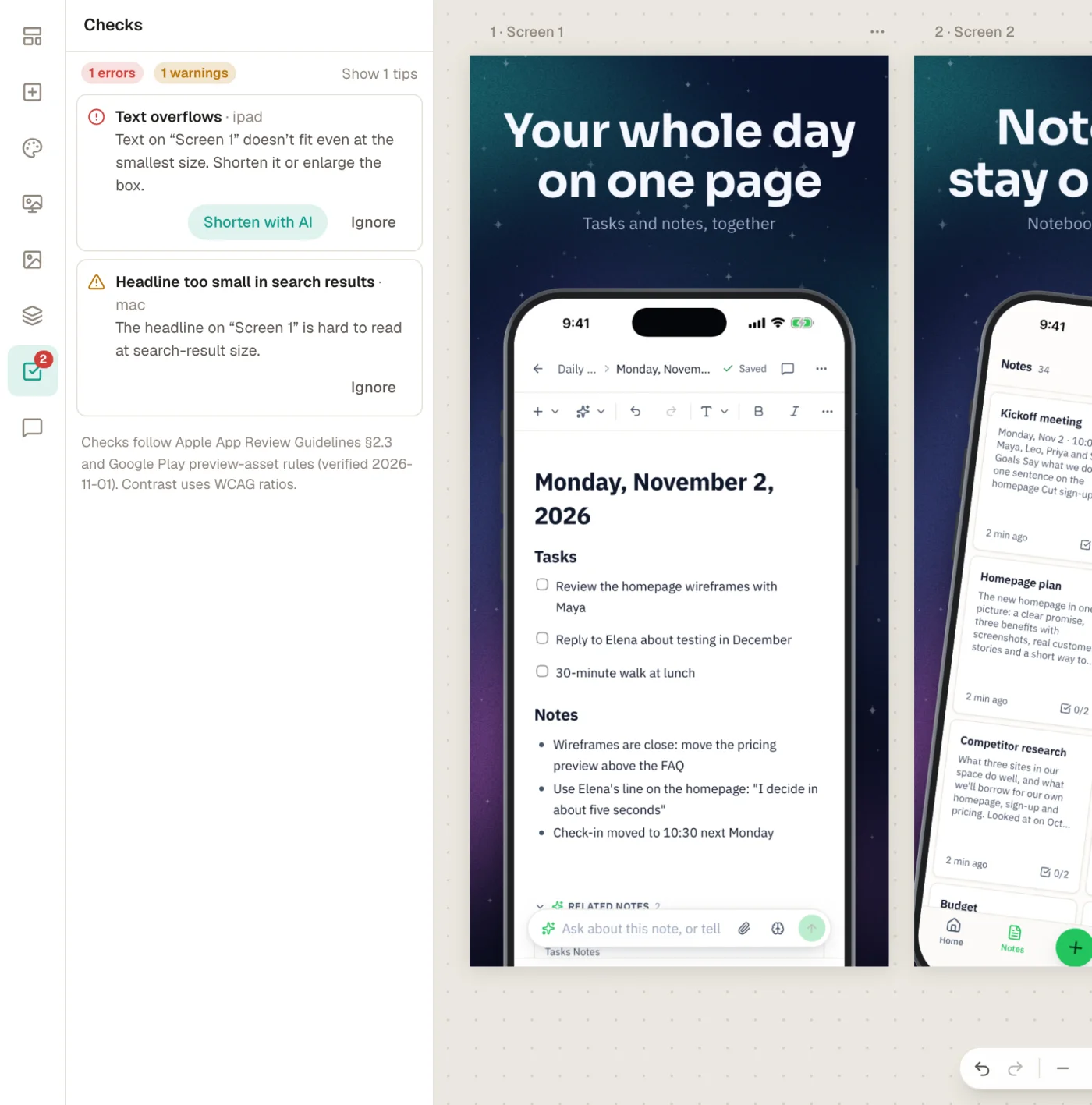
| Legibility | Overflowing text, low contrast, headlines too small for search results, text over 20% of the image |
| Google Play | Too few screenshots, device imagery |
| The set | A first screen with no headline, the same screenshot twice, uneven headline sizes, untranslated copy |
| Inside the capture (AI) | Real-looking personal data, debug overlays, visible keyboards, loading or error states, login screens, other platforms' imagery |
Store rules checked November 4, 2026, against Apple's and Google's own pages. They change, so check the source before relying on any one number.
Questions
Good to know.
Can I put text on App Store screenshots?
Yes. Apple suggests a short phrase that adds to the picture rather than describes it, localized for each language your app supports.
Do App Store screenshots have to show the real app?
Apple says you may show content outside your app in use, but it must still relate to the app's general functionality, and screenshots should depict the app in use.
Can I mention my price or a sale?
Apple says not to include specific pricing or discounts, and Google warns against price and promotional text too.
Can I use device frames?
Apple doesn't ask you to avoid them. Google's guidance discourages device imagery, since it can date quickly. Frameless designs work on both.
Can I show an iPhone on Google Play?
It's best not to. Apple asks you not to show other platforms' logos or references, and Google warns against third-party trademarks without permission. Use Android captures on Play and iPhone captures on the App Store.
Keep reading
More on store screenshots.
Your store page is the first thing people see.
Drop in your screenshots and see them in every template, right now.
Get started